
macOS: macOS 10.14.6 Mojave, macOS 10.15 Catalina, macOS 11 Big Sur, macOS 12 Monterey
FxFactory: 7.2.5 +
Apps: Final Cut Pro 10.4 +, Motion 5.4 +, Premiere Pro 12 +, After Effects 15 +
M1 (Apple silicon) Macs: require Final Cut Pro 10.5.3 +
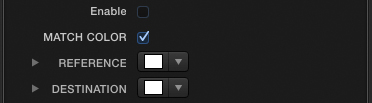 Click on the Reference swatch, to bring up the Mac Color picker and move the playhead to the shot you wish to match to and pick a color. Note that in hosts other than FCP you can pick directly using the eyedropper for each color swatch without having to invoke the Mac Color picker.
 Click "Enable" to see the results.
 The Amount slider allows you to quickly dial the correction up or down.
  This is often desirable and really depends on the material and your intent but
the Match Brightness slider allows for an easy override that maintains the
brightness of your clip while still correcting the color. To maintain the
brightness of the destination clip, move the Match Brightness slider towards
zero. Move the slider between zero and 1 to brighten or darken your clip by the
desired amount. You can even push past the Reference scene brightness level
by taking the slider beyond 1.
This is often desirable and really depends on the material and your intent but
the Match Brightness slider allows for an easy override that maintains the
brightness of your clip while still correcting the color. To maintain the
brightness of the destination clip, move the Match Brightness slider towards
zero. Move the slider between zero and 1 to brighten or darken your clip by the
desired amount. You can even push past the Reference scene brightness level
by taking the slider beyond 1.  Enable the "Match 2" checkbox to bring up the second match.
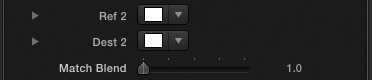 Two more swatches will appear below the current swatches labelled Ref 2 and Dest 2
as well as a Match Blend slider. This slider defaults to a value of 1, which represents
100% of the first match you made. When the slider is at 2 the correction is being
made using 100% of the second match. A value of 1.5 gives a 50/50 mix of the two.
Two more swatches will appear below the current swatches labelled Ref 2 and Dest 2
as well as a Match Blend slider. This slider defaults to a value of 1, which represents
100% of the first match you made. When the slider is at 2 the correction is being
made using 100% of the second match. A value of 1.5 gives a 50/50 mix of the two.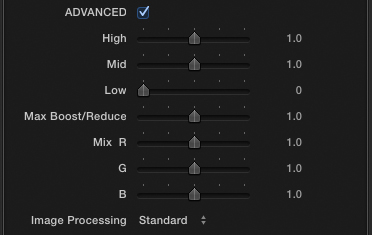
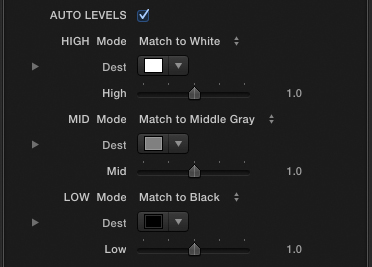 Default Mode - in the default mode the luminance of the selections you make with the high, mid and low pickers are matched to absolute values for White, Middle Gray or Black respectively, making for a very easy way to balance out your clip for an optimum spread of values.
 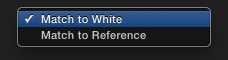 Change the High, Mid or Low Mode to access this operation.
 Enable the Fine-Tune checkbox to reveal the Fine-Tune controls
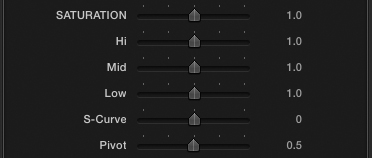 You'll find control over Global, High, Mid and Low saturation.
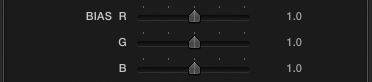 The Bias control allows you to adjust the correction amount applied to each channel for the entire effect.
 Legalize - enable the legalize checkbox to clamp the signal to broadcast levels. It is best practice not to enable this until you have finalised your shot to avoid unnecessary clipping of the values.

