Quick Start
Hawaiki Super Glow is very sophisticated with loads of features to explore, but if you're just wanting to get started right away here are some basic tips.
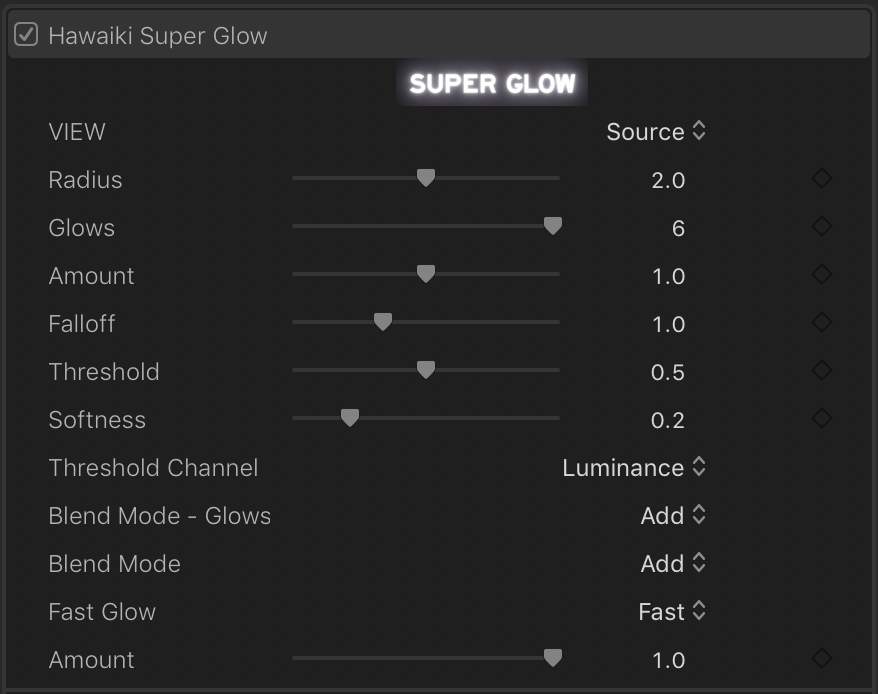
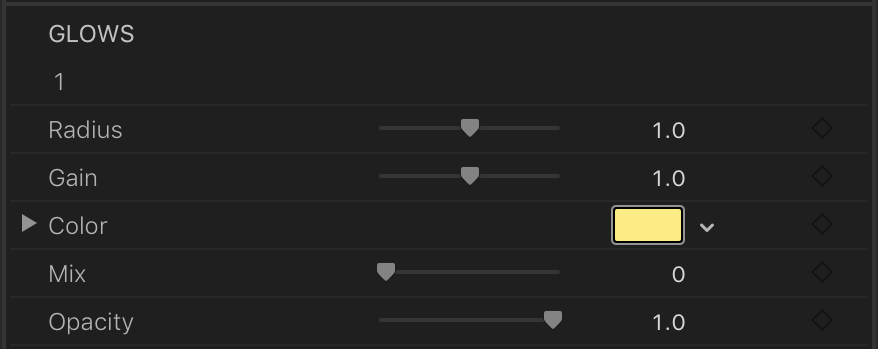
To make basic adjustments to spread of glow we recommend you use the Glows slider rather than the Radius slider. There are six glow components linked together exponentially - the Radius adjusts the exponent, but the Glows sliders selects how many glows are being used. A tighter glow that is less spread out is best achieved by reducing the number of glow elements with the glow slider.
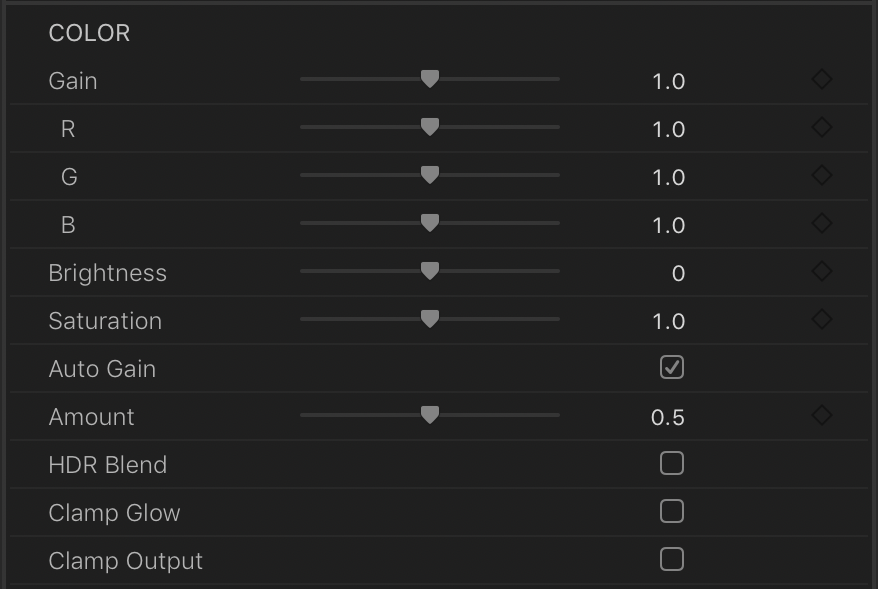
To adjust the intensity of the glow try adjusting the Gain slider which you can find at the top of the Color section. As you get more familiar with Super Glow you'll discover that there are a few different options that you can work with, but Gain is a good starting point. For example, if you are after a look that it more "fogged" try increasing the Brightness value.
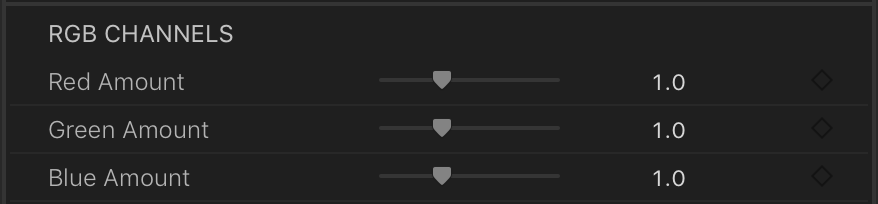
To adjust the basic color of the glow, a good place to start is with the RGB Gain controls.
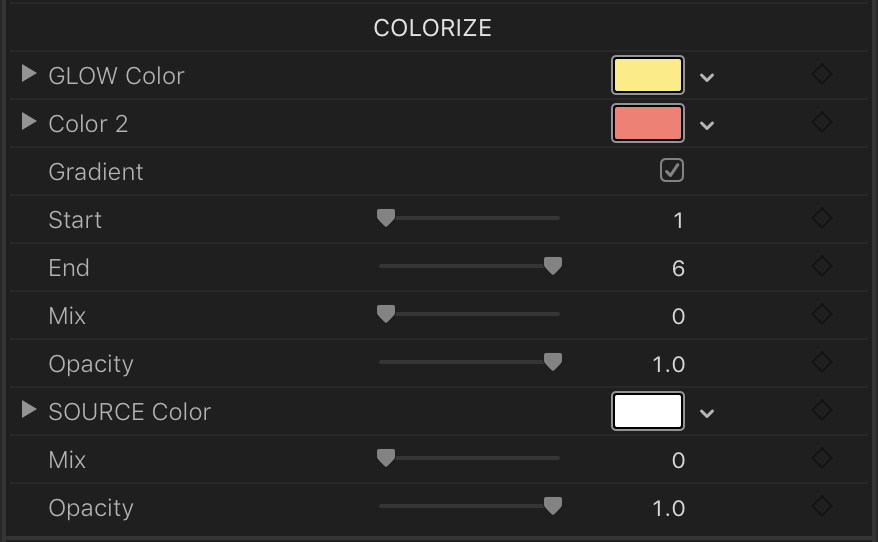
If you want to get a bit more fancy, reset the RGB Gain (to keep things simple), and go down to the Colorize section and increase the value of the Mix slider all the way up to the top. The glow will now be colorised using a gradient that interpolates between the two color swatch values. Glow Color sets the core color of the glow and Color 2 sets the outer value. If you increase the Start value, the core color will expand outwards, and conversely adjusting the End value brings the outer color closer to the centre.
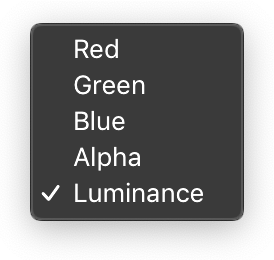
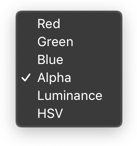
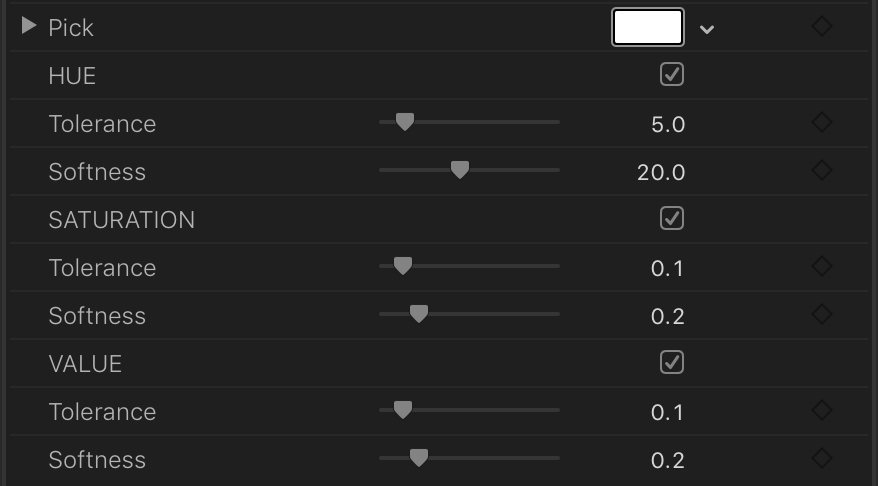
If you are working with images that have alpha information, the alpha of the foreground will determine the area that is being glowed and as a starting point this will usually be enough. However if you're working with images with no alpha information, you will want to limit the area that is being glowed, for example if you only want to glow a bright light, or a window, or a light sabre. Super Glow offers some really cool ways of isolating those areas (including the option to use a HSV keyer), but to get you started we recommend you use the Threshold control. Increasing the threshold value means that only the very brightest areas will be glowed. The Softness control will adjust how sharp or soft the transition to those areas will be.
So that's a quick look at the basic operation so you can get up and running quickly. The really interesting part comes when you start diving into some of the many advanced features. But even if you never touch these, Super Glow is going to give you amazing-looking, rich, photorealistic glows, whether they're really subtle or blindingly intense.
Have fun!
New in Super Glow 1.1 - support for DaVinci Resolve 20.